> ## Documentation Index
> Fetch the complete documentation index at: https://docs.trysetter.com/llms.txt
> Use this file to discover all available pages before exploring further.
# WhatsApp Meeting Reminders Setup
> Automatically send WhatsApp reminders to your invitees before a Calendly event starts.
> **TL;DR:**
>
> 1. Ensure your bot has Calendly and WhatsApp integrations already connected.
> 2. Create a **Reminder Configuration** that links the two integrations and points to an approved WhatsApp template.\
> That's it – Setter AI will now notify your invitees on WhatsApp \~2 h before their meeting.
***
## 1. Prerequisites
1. **Setter AI account** with at least one *bot*.
2. **Calendly account already connected** to your bot (via the bot's Calendly integrations section).
3. **WhatsApp integration already set up** for your bot with a valid access token and phone number.
4. **Meta WhatsApp Business** account with an *approved* message template (e.g. `meeting_reminder`).
5. **Calendly event type configured to collect phone numbers** - your event type must include a required phone number field in the booking form.
**Important:** Setter AI currently sends reminders **2 hours** before each event. If you need a different schedule, [contact support](mailto:support@trysetter.com).
**Phone Number Required:** Reminders will only be sent to invitees who provide a phone number during booking. Make sure your Calendly event type includes a required phone number field.
***
## 2. Create a Reminder Configuration
With both your Calendly account and WhatsApp integration already set up, you can now link them together through the Setter AI dashboard.
### Step 1: Navigate to Meeting Reminders
1. Go to your bot's dashboard in Setter AI
2. Navigate to **Settings > Reminders**
3. Click **"Create New Reminder"**
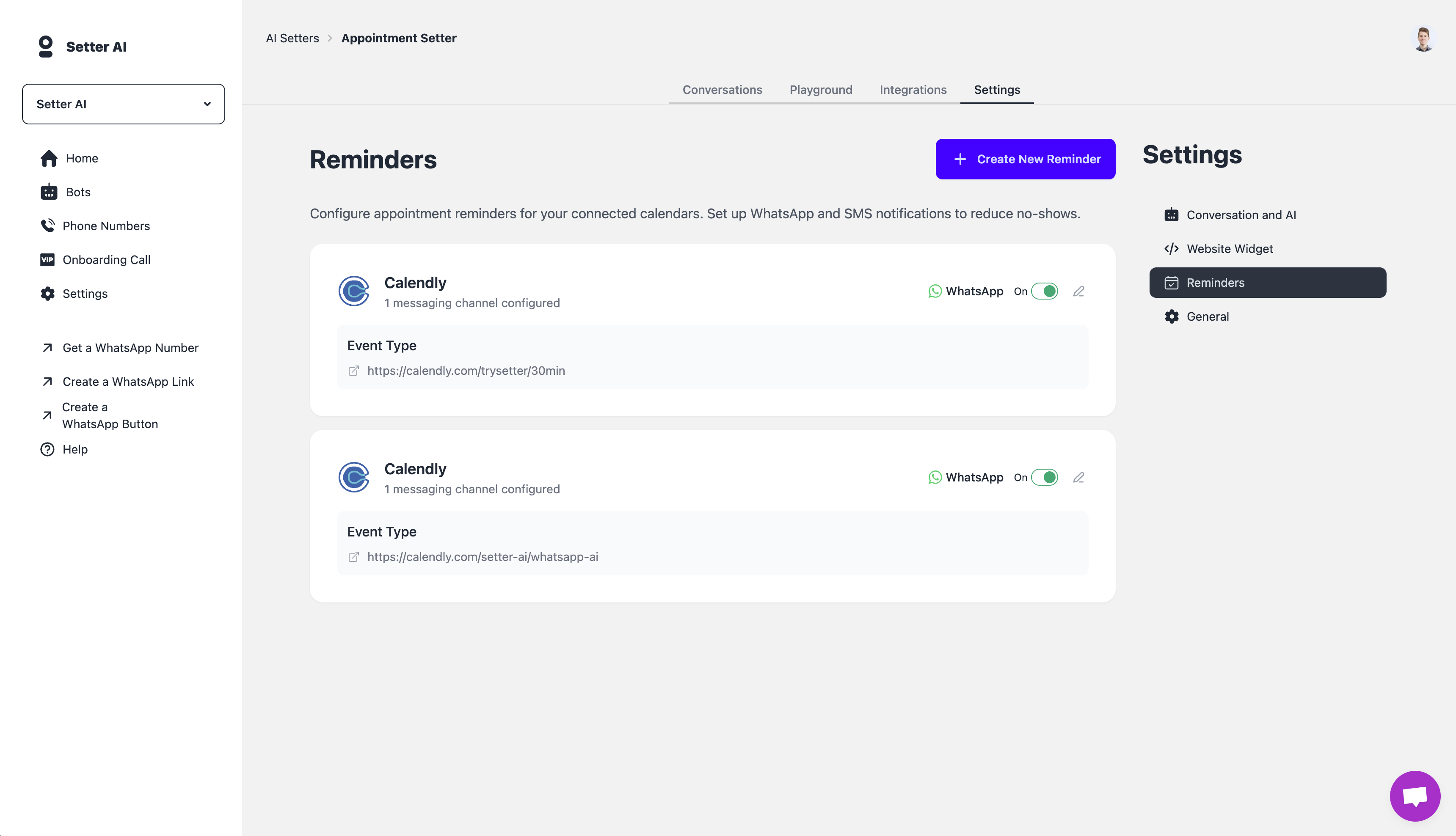 *Screenshot: Meeting reminders section in the bot dashboard*
### Step 2: Configure Calendar Integration
1. Select **Calendly** as your calendar provider
2. Choose the Calendly account you want to use from the dropdown
3. Select the specific **Event Type** that should trigger reminders (ensure this event type collects phone numbers from invitees)
*Screenshot: Meeting reminders section in the bot dashboard*
### Step 2: Configure Calendar Integration
1. Select **Calendly** as your calendar provider
2. Choose the Calendly account you want to use from the dropdown
3. Select the specific **Event Type** that should trigger reminders (ensure this event type collects phone numbers from invitees)
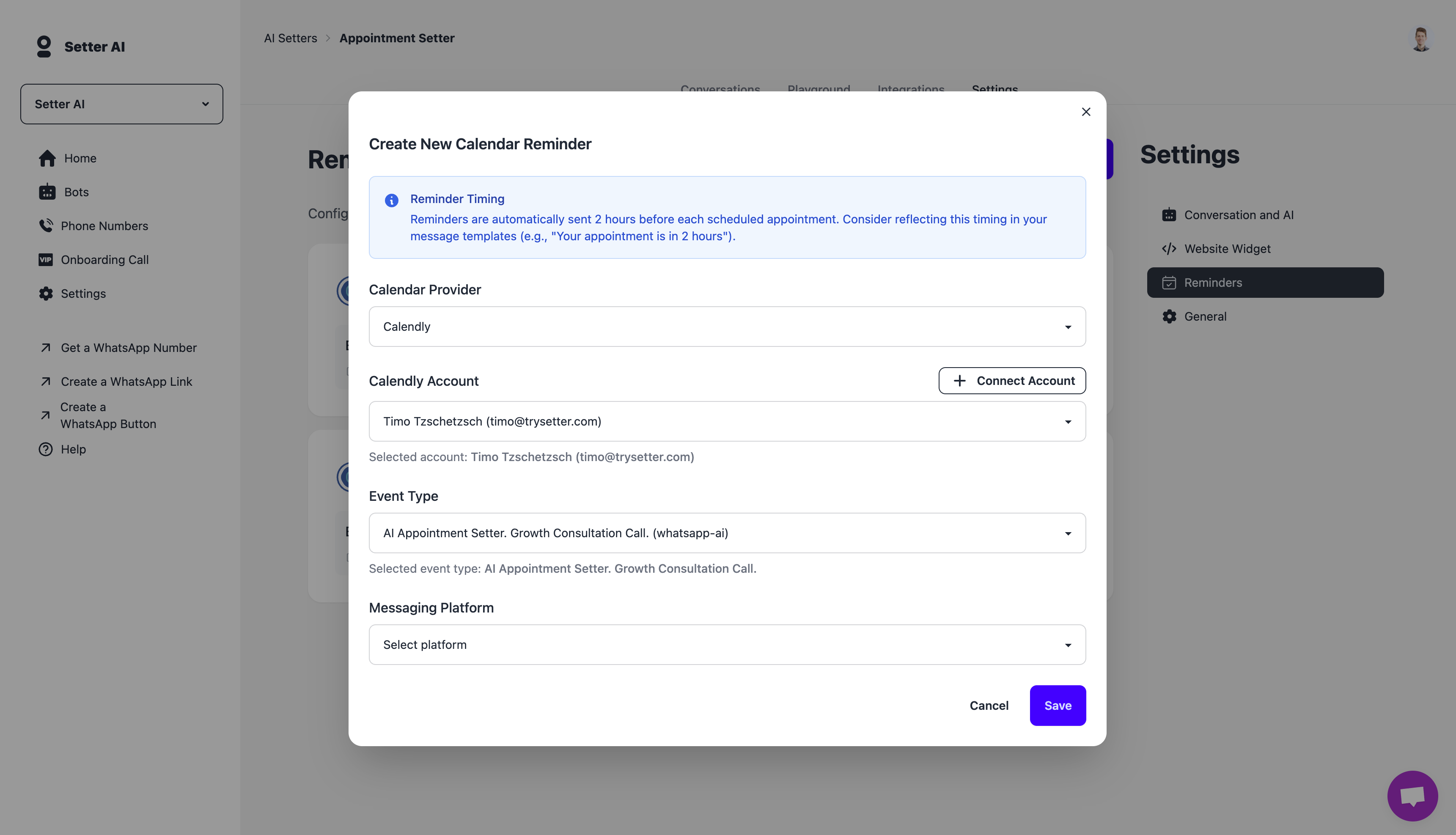 *Screenshot: Selecting Calendly account and event type*
### Step 3: Configure WhatsApp Messaging
1. Select **WhatsApp** as your messaging platform
2. Choose your approved **Message Template** from the dropdown
3. Configure the template variables - these are the placeholders you defined when creating your WhatsApp message template
Need help creating message templates? Check out this [video guide](https://www.youtube.com/watch?v=rLv_h95svBI) for step-by-step instructions.
*Screenshot: Selecting Calendly account and event type*
### Step 3: Configure WhatsApp Messaging
1. Select **WhatsApp** as your messaging platform
2. Choose your approved **Message Template** from the dropdown
3. Configure the template variables - these are the placeholders you defined when creating your WhatsApp message template
Need help creating message templates? Check out this [video guide](https://www.youtube.com/watch?v=rLv_h95svBI) for step-by-step instructions.
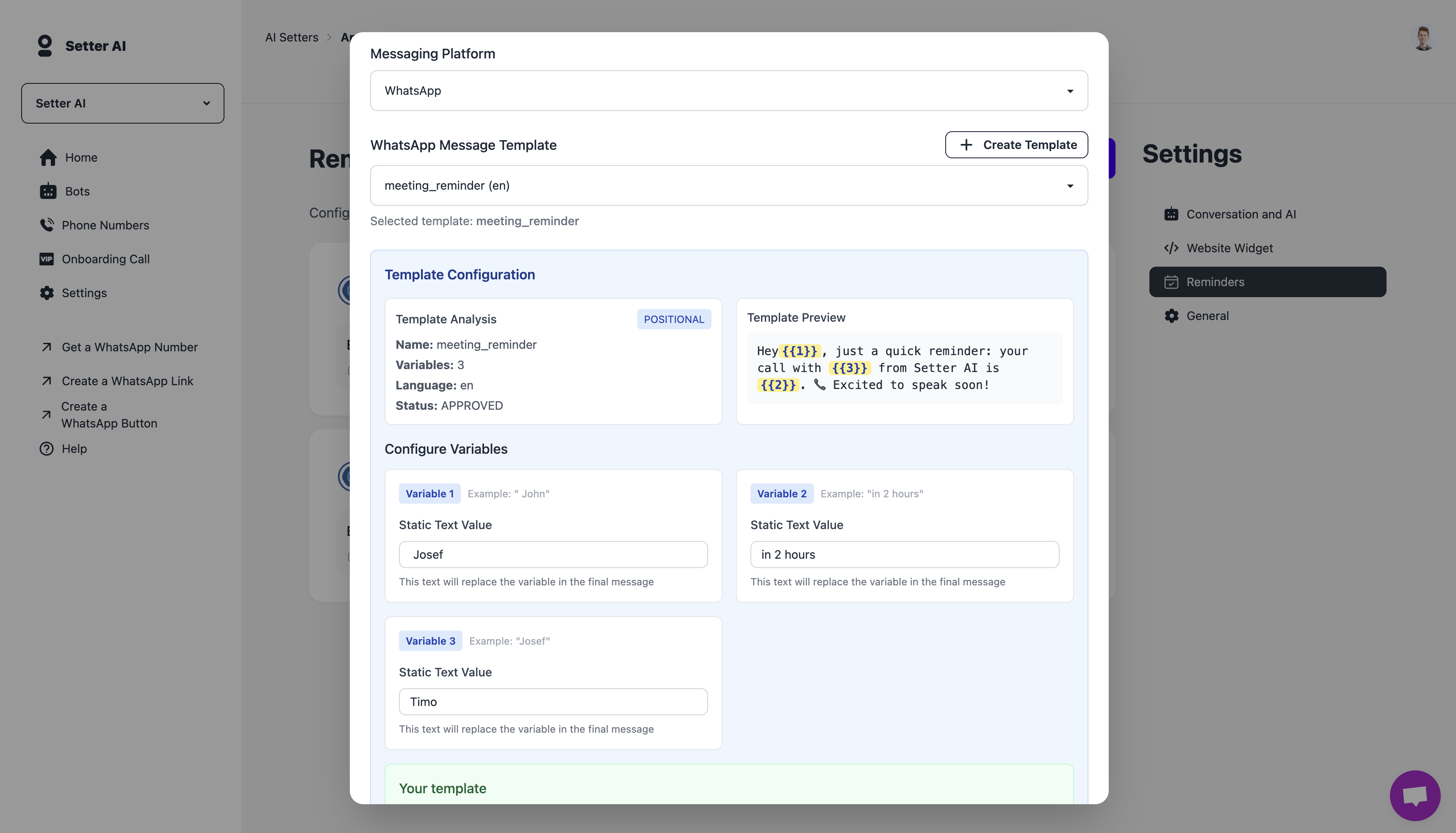 *Screenshot: WhatsApp template selection and variable configuration*
### Step 4: Preview and Save
1. Review the reminder configuration summary
2. Preview how the message will look to customers
3. Click **"Save"** to activate the reminders
*Screenshot: WhatsApp template selection and variable configuration*
### Step 4: Preview and Save
1. Review the reminder configuration summary
2. Preview how the message will look to customers
3. Click **"Save"** to activate the reminders
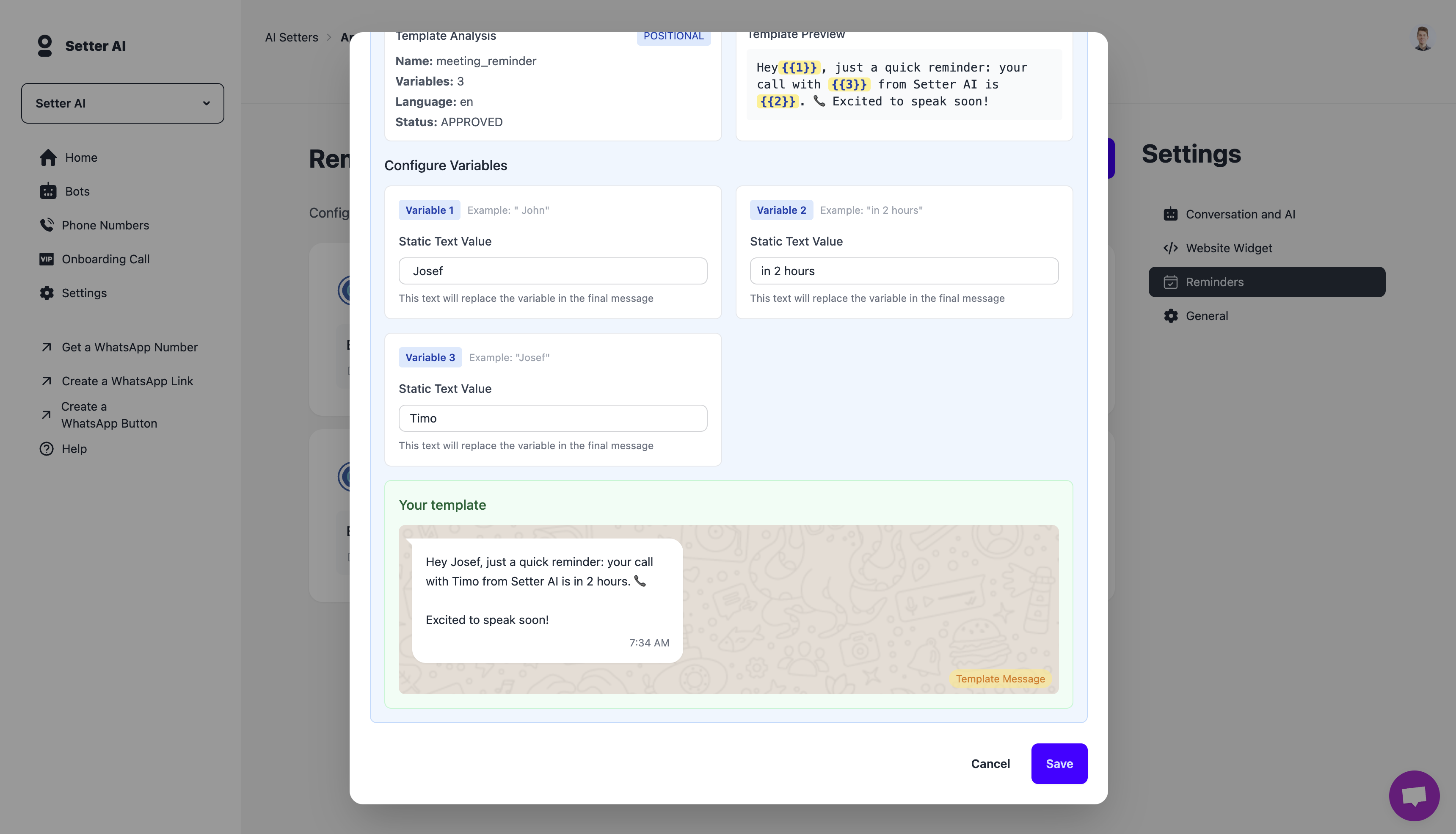 *Screenshot: Final preview and save screen*
***
## 3. Managing Reminder Configurations
### View Existing Configurations
1. In your bot dashboard, go to **Settings > Reminders**
2. All active reminder configurations will be displayed in a list
3. You can see which calendar accounts and event types have reminders enabled
### Edit or Disable Configurations
1. Click the **"Edit"** button next to any configuration
2. Modify the template, variables, or other settings as needed
3. Use the **"Enable/Disable"** toggle to turn reminders on or off
4. Click **"Update"** to save your changes
***
## 4. How it Works Behind the Scenes
1. **Every few minutes** Setter AI scouts your Calendly account for events starting *\~2 h* in the future (5 min grace window).
2. For each invitee we look up a phone number in Calendly's questions & answers (if no phone number was provided during booking, no reminder will be sent).
3. A WhatsApp template message is sent via the bot channel.
***
## 5. Troubleshooting
| Issue | Fix |
| ----------------------------------------- | ---------------------------------------------------------------------------------------------------------------------------------- |
| No reminders are being sent | Verify the reminder configuration is enabled and that your Calendly event type collects phone numbers from invitees. |
| Invitee didn't receive a message | Ensure the invitee provided a phone number during booking. The phone number should be in international format (e.g., +1234567890). |
| "Template rejected" error | The template name or language code does not match an *approved* template in your WhatsApp Business account. |
| Some invitees get reminders, others don't | Check that all invitees provided phone numbers during booking - reminders are only sent to those with valid phone numbers. |
Need more help? Reach out at [support@trysetter.com](mailto:support@trysetter.com).
*Screenshot: Final preview and save screen*
***
## 3. Managing Reminder Configurations
### View Existing Configurations
1. In your bot dashboard, go to **Settings > Reminders**
2. All active reminder configurations will be displayed in a list
3. You can see which calendar accounts and event types have reminders enabled
### Edit or Disable Configurations
1. Click the **"Edit"** button next to any configuration
2. Modify the template, variables, or other settings as needed
3. Use the **"Enable/Disable"** toggle to turn reminders on or off
4. Click **"Update"** to save your changes
***
## 4. How it Works Behind the Scenes
1. **Every few minutes** Setter AI scouts your Calendly account for events starting *\~2 h* in the future (5 min grace window).
2. For each invitee we look up a phone number in Calendly's questions & answers (if no phone number was provided during booking, no reminder will be sent).
3. A WhatsApp template message is sent via the bot channel.
***
## 5. Troubleshooting
| Issue | Fix |
| ----------------------------------------- | ---------------------------------------------------------------------------------------------------------------------------------- |
| No reminders are being sent | Verify the reminder configuration is enabled and that your Calendly event type collects phone numbers from invitees. |
| Invitee didn't receive a message | Ensure the invitee provided a phone number during booking. The phone number should be in international format (e.g., +1234567890). |
| "Template rejected" error | The template name or language code does not match an *approved* template in your WhatsApp Business account. |
| Some invitees get reminders, others don't | Check that all invitees provided phone numbers during booking - reminders are only sent to those with valid phone numbers. |
Need more help? Reach out at [support@trysetter.com](mailto:support@trysetter.com).