> ## Documentation Index
> Fetch the complete documentation index at: https://docs.trysetter.com/llms.txt
> Use this file to discover all available pages before exploring further.
# Twilio SMS Setup
> Set up SMS integration through our self-serve integration UI.
**Author:** Josef Büttgen\
**Last updated:** September 20, 2025
## Overview
This guide walks you through setting up SMS integration with Twilio using our **completely self-serve integration UI**. You can now connect your Twilio account directly through our dashboard without any manual coordination with our team.
## Pre-requisites
**A2P 10DLC registration (only US & Canada)** – US long-code numbers must have a fully approved A2P (brand & campaign) before any application-generated messages can be sent. [Complete the A2P registration process →](/sms-integration/a2p-registration)
**What you'll need:**
* Your Twilio Account SID
* Your Twilio Auth Token
* Your Twilio phone number
* Access to your Twilio Console for webhook configuration
***
## Step 1: Connect Twilio in Integration UI
1. **Navigate to Integrations**
* Go to your bot dashboard
* Click on **Integrations** in the navigation
* Select **Twilio** from the integration options
2. **Enter Your Twilio Credentials**
* **Phone Number**: Enter your Twilio phone number (e.g., 1234567890, no '+' symbol at the start)
* **Account SID**: Found in your Twilio Console dashboard
* **Auth Token**: Found in your Twilio Console dashboard (will be hidden for security)
3. **Save Integration**
* Click **Save** to create the integration
* Your **Bot Integration ID** will be automatically generated and displayed
* Copy this ID - you'll need it for API calls
**Bot Integration ID**: This unique identifier is automatically created when you save your integration. You'll use this ID in API calls to send SMS messages.
***
## Step 2: Configure AI Setter Webhook in Twilio
Now that your integration is set up, you need to configure your Twilio phone number or Messaging Service to route incoming SMS messages to the AI Setter webhook:
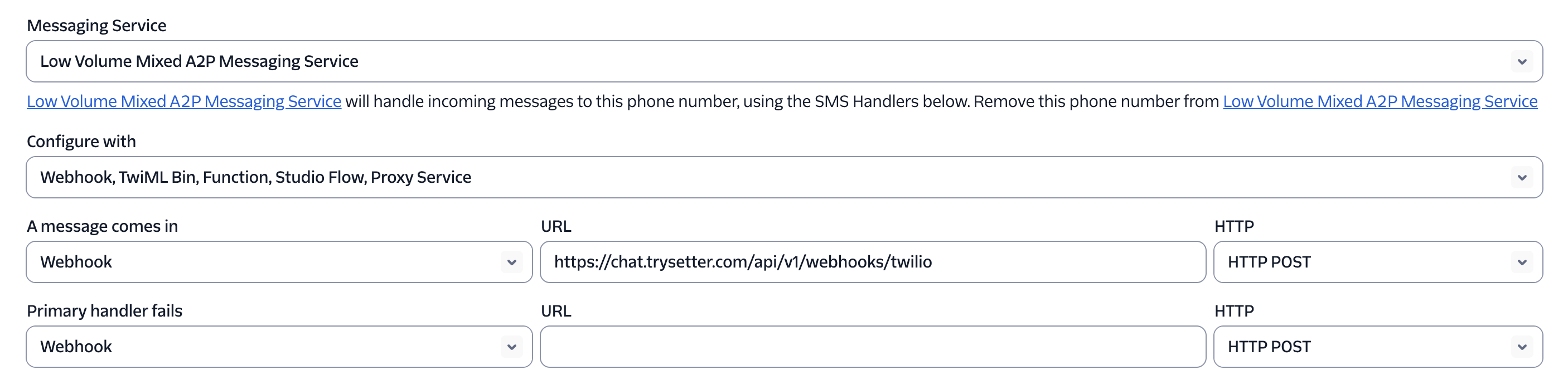 *Example: Messaging Configuration in Twilio (Messaging Service can differ to your configuration).*
### Setup Steps
1. **Navigate to your Twilio Console**
* For **Phone Numbers**: Go to **Phone Numbers → Manage → Active numbers** → Select your number
* For **Messaging Services**: Go to **Messaging → Services** → Select your service
2. **Configure the Incoming Message Handler**
Set the following fields exactly as shown:
* **Messaging Service**: Select your A2P messaging service (e.g., "Low Volume Mixed A2P Messaging Service")
* **Configure with**: Select **"Webhook, TwiML Bin, Function, Studio Flow, Proxy Service"**
* **A message comes in**:
* Type: **"Webhook"**
* URL: `https://chat.trysetter.com/api/v1/webhooks/twilio`
* HTTP Method: **"HTTP POST"**
* **Primary handler fails**:
* Type: **"Webhook"**
* HTTP Method: **"HTTP POST"**
* URL: *leave empty*
3. **Save Configuration**
Once the webhook is configured, you can initiate SMS conversations using the Bot Integration ID from your integration UI.
## Step 3: Testing Your Setup
After saving the webhook configuration, test your integration:
1. **Send a test message** to your Twilio phone number from your personal phone
2. **Check for an AI response** - You should receive an automated reply from AI Setter
3. **Verify in dashboard** - Check your bot's conversation history to see the test message
4. **Contact support** if you don't receive a response within a few minutes
## Troubleshooting
### Integration Not Working - Bad Request Responses
If you've followed all the setup steps but your SMS integration isn't working and you're seeing **'Bad Request'** responses from Setter AI in your Twilio logs:
**Double-check your Auth Token** - The most common cause of Bad Request errors is an incorrectly entered Twilio Auth Token in the integration settings.
**Steps to resolve:**
1. **Verify Auth Token**
* Go back to your Twilio Console dashboard
* Copy your Auth Token again (make sure to get the complete token)
* Navigate to your Setter AI Integrations page
* Re-enter the Auth Token exactly as copied from Twilio
* Save the integration settings
2. **Test the integration**
* Send a test message to your Twilio phone number
* Check if you receive an AI response
3. **Still not working?**
* Contact our support team with your integration details
* Include your Bot Integration ID and any error messages from Twilio logs
Send details to [support@trysetter.com](mailto:support@trysetter.com)
***
## What You'll Need for API Calls
To start sending SMS conversations, you'll need:
* **Bot Integration ID** (displayed in your integration UI after saving)
* **API Key** (from your Setter AI dashboard)
## Next Steps
Learn how to initiate SMS conversations via API
## Need Help?
Contact [support@trysetter.com](mailto:support@trysetter.com) for integration issues
Schedule a call at [calendly.com/setter-ai](https://calendly.com/setter-ai/ai-appointment-setter-15min) for setup assistance
## Summary
With the new self-serve integration UI, setting up SMS is now completely streamlined:
1. **Enter credentials** directly in the Twilio integration page
2. **Configure webhook** in your Twilio console
3. **Start using** your Bot Integration ID for API calls immediately
No more back-and-forth with our team or waiting for manual setup!
*Example: Messaging Configuration in Twilio (Messaging Service can differ to your configuration).*
### Setup Steps
1. **Navigate to your Twilio Console**
* For **Phone Numbers**: Go to **Phone Numbers → Manage → Active numbers** → Select your number
* For **Messaging Services**: Go to **Messaging → Services** → Select your service
2. **Configure the Incoming Message Handler**
Set the following fields exactly as shown:
* **Messaging Service**: Select your A2P messaging service (e.g., "Low Volume Mixed A2P Messaging Service")
* **Configure with**: Select **"Webhook, TwiML Bin, Function, Studio Flow, Proxy Service"**
* **A message comes in**:
* Type: **"Webhook"**
* URL: `https://chat.trysetter.com/api/v1/webhooks/twilio`
* HTTP Method: **"HTTP POST"**
* **Primary handler fails**:
* Type: **"Webhook"**
* HTTP Method: **"HTTP POST"**
* URL: *leave empty*
3. **Save Configuration**
Once the webhook is configured, you can initiate SMS conversations using the Bot Integration ID from your integration UI.
## Step 3: Testing Your Setup
After saving the webhook configuration, test your integration:
1. **Send a test message** to your Twilio phone number from your personal phone
2. **Check for an AI response** - You should receive an automated reply from AI Setter
3. **Verify in dashboard** - Check your bot's conversation history to see the test message
4. **Contact support** if you don't receive a response within a few minutes
## Troubleshooting
### Integration Not Working - Bad Request Responses
If you've followed all the setup steps but your SMS integration isn't working and you're seeing **'Bad Request'** responses from Setter AI in your Twilio logs:
**Double-check your Auth Token** - The most common cause of Bad Request errors is an incorrectly entered Twilio Auth Token in the integration settings.
**Steps to resolve:**
1. **Verify Auth Token**
* Go back to your Twilio Console dashboard
* Copy your Auth Token again (make sure to get the complete token)
* Navigate to your Setter AI Integrations page
* Re-enter the Auth Token exactly as copied from Twilio
* Save the integration settings
2. **Test the integration**
* Send a test message to your Twilio phone number
* Check if you receive an AI response
3. **Still not working?**
* Contact our support team with your integration details
* Include your Bot Integration ID and any error messages from Twilio logs
Send details to [support@trysetter.com](mailto:support@trysetter.com)
***
## What You'll Need for API Calls
To start sending SMS conversations, you'll need:
* **Bot Integration ID** (displayed in your integration UI after saving)
* **API Key** (from your Setter AI dashboard)
## Next Steps
Learn how to initiate SMS conversations via API
## Need Help?
Contact [support@trysetter.com](mailto:support@trysetter.com) for integration issues
Schedule a call at [calendly.com/setter-ai](https://calendly.com/setter-ai/ai-appointment-setter-15min) for setup assistance
## Summary
With the new self-serve integration UI, setting up SMS is now completely streamlined:
1. **Enter credentials** directly in the Twilio integration page
2. **Configure webhook** in your Twilio console
3. **Start using** your Bot Integration ID for API calls immediately
No more back-and-forth with our team or waiting for manual setup!